MyWay
Changelog · iOS ·
Addresses straight from a photo
Snap a list of addresses on a screen, on paper or in a note, and MyWay turns it into stops for your route. The photo is read right on your iPhone.
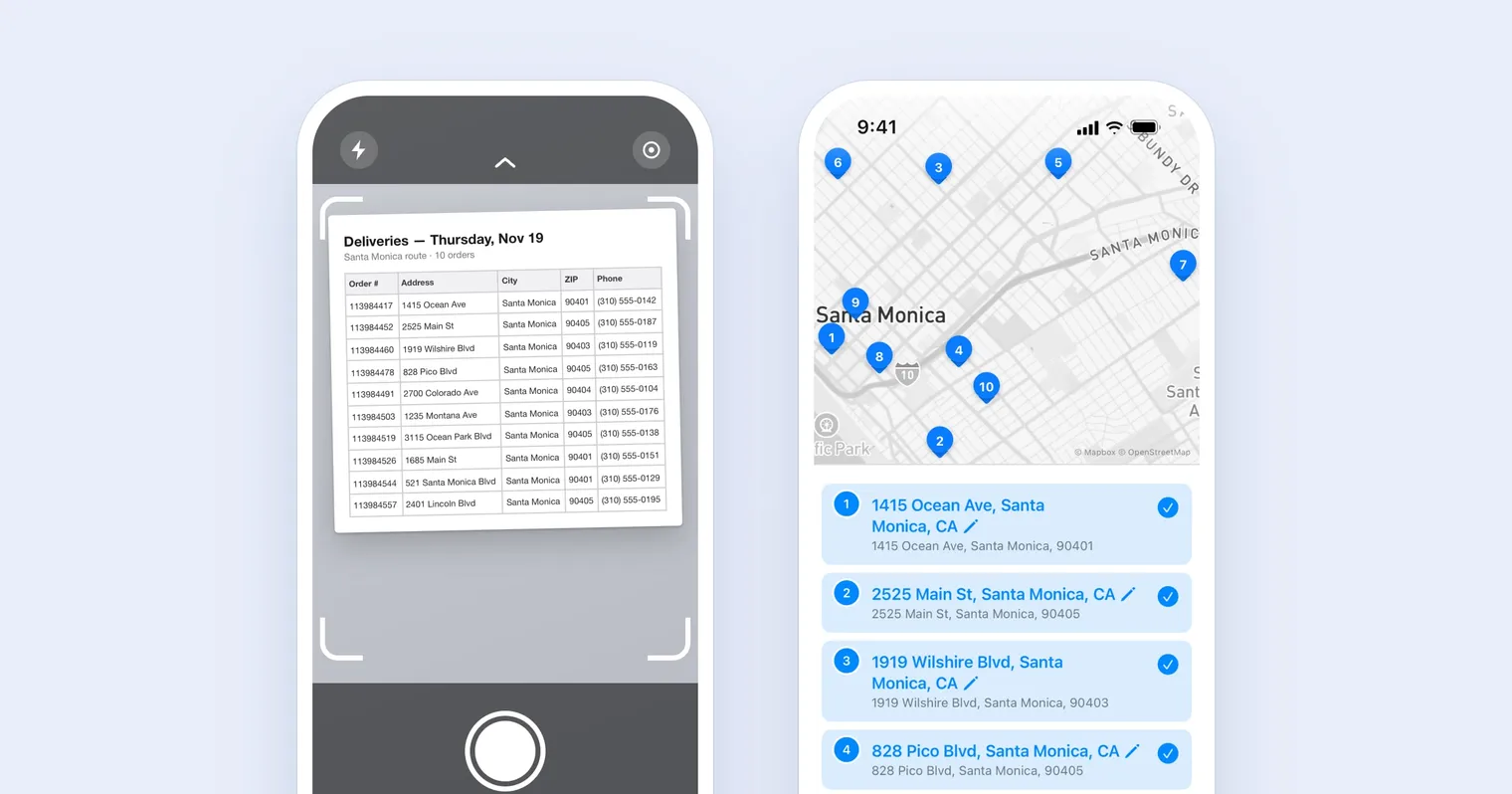
Stops often come as a printout, a screenshot of a message or a spreadsheet on someone else’s screen. You no longer have to type them in. Take a photo of the list, and MyWay turns it into addresses for your route.
Snap the list, get the stops
In search, open List and tap the camera button under the field. Take a photo of the list or pick one from your photos. Tips over the buttons show how to take a photo MyWay reads well. The addresses it finds are added to the list, after any lines that are already there.
Spreadsheets are fine too
A busy table with order numbers, phone numbers and dates is no problem. MyWay finds the address column and adds the city and ZIP code from their own columns. Phone numbers, dates and other numbers stay out of the list.
Check before you add
The results open under a map of the addresses MyWay found. Each row shows the found address in blue with the line from the photo under it. Fix an address with the pencil, tap rows to choose which to add, and Add to Route shows how many you picked.
Read on your iPhone
The photo is read right on your iPhone and never leaves it. The scan needs iOS 26 or later.